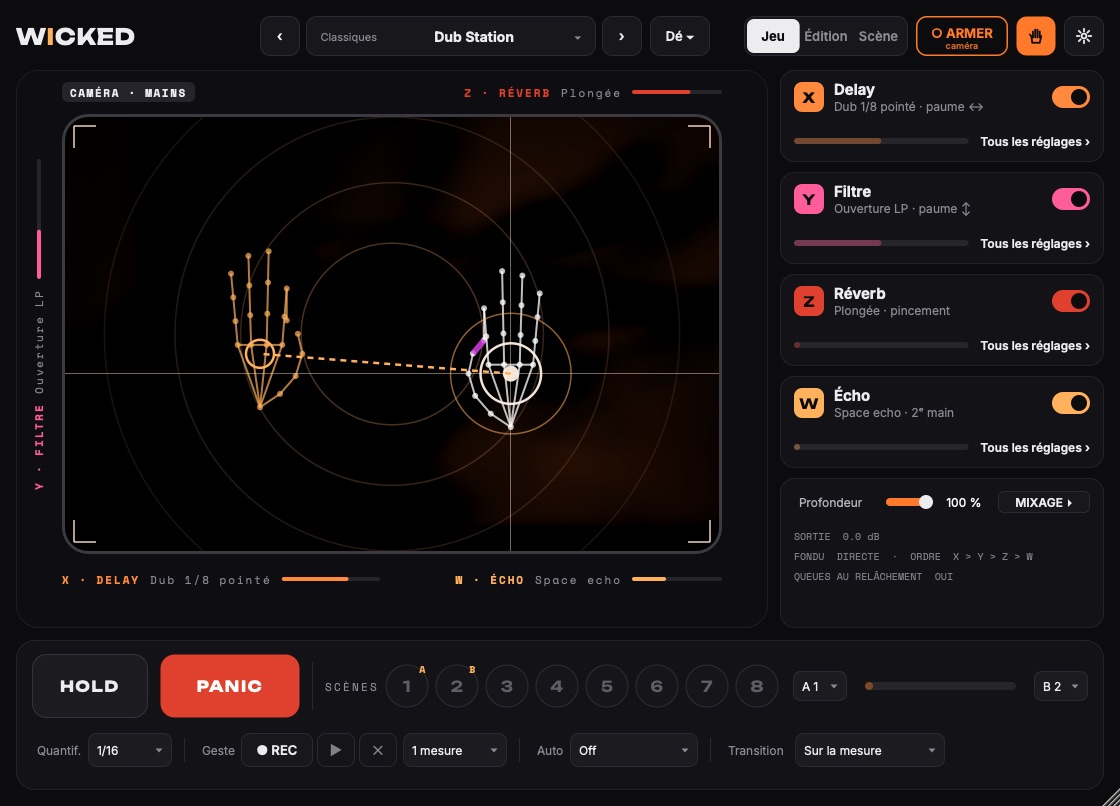
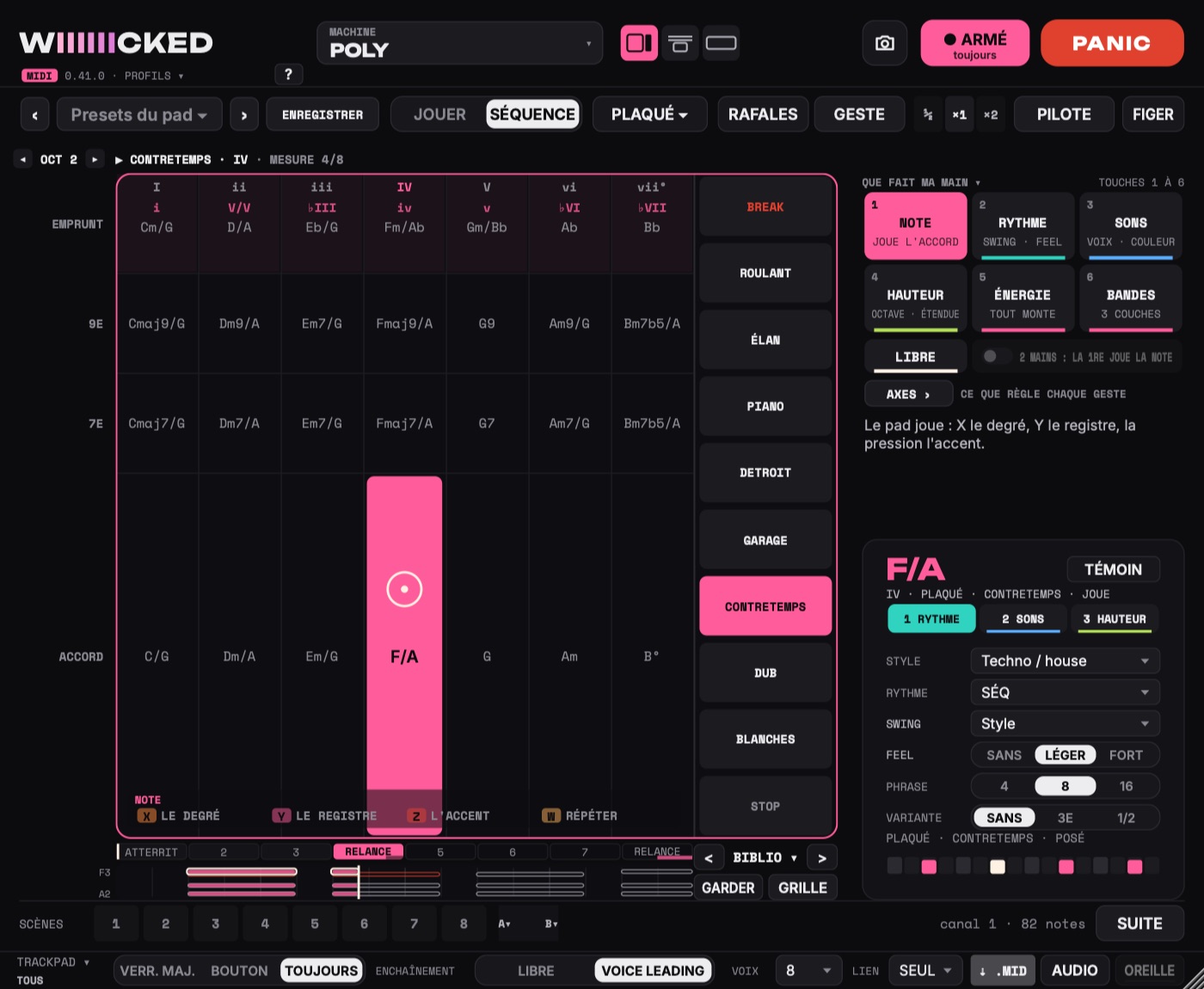
Wiiiiiicked is two plug-ins for Ableton Live that you play with the trackpad, the mouse or in front of the camera:
- Wiiiiiicked Audio: the multi-effect. It goes on a track that has sound, or on the Master.
- Wiiiiiicked MIDI: it plays your synths, Live's own as well as the ones connected over MIDI. It goes on a MIDI track.
This guide takes you from installing to the first sound, for one, then the other, then both together. How to play, in detail, is in the Audio manual and the MIDI manual.
1. What you need
- a Mac running macOS 12 or later, with Apple silicon or Intel;
- for Wiiiiiicked Audio: Ableton Live, or Logic, Bitwig, Reaper, Cubase… or its standalone app; for Wiiiiiicked MIDI: Ableton Live 12;
- ideally a Force Touch trackpad (MacBook from 2015 on, Magic Trackpad 2);
- a webcam for camera mode;
- for Wiiiiiicked MIDI: a synth in Live, or a machine connected over MIDI (audio interface, MIDI interface or USB).
Pro Tools isn't supported.
2. Installing the two plug-ins
A single .pkg installer puts both plug-ins on your Mac.
-
Double-click the Wiiiiiicked installer (
.pkg). - macOS shows “Apple could not verify…”. That's normal: the plug-in is homemade and not signed by Apple. Click Done, and definitely not “Move to Trash”.
- Open System Settings › Privacy & Security and scroll down to Security. A message mentions the Wiiiiiicked installer: click Open Anyway, then confirm with your password or Touch ID. Up to macOS 14, right-clicking the file › Open is enough.
-
Follow the installer. It asks for your password, because the plug-ins go into the Mac's shared folder. Both plug-ins install together; to keep only one, click Customize at the “Installation Type” step and untick the other. It adds:
-
/Library/Audio/Plug-Ins/VST3/Wiiiiiicked.vst3(Wiiiiiicked Audio); -
/Library/Audio/Plug-Ins/Components/Wiiiiiicked.component(Wiiiiiicked Audio, as an Audio Unit); -
/Applications/Wiiiiiicked.app(Wiiiiiicked Audio, as a standalone app); -
/Library/Audio/Plug-Ins/VST3/Wiiiiiicked MIDI.vst3(Wiiiiiicked MIDI, part 3).
-
-
Your license (for the beta): open Wiiiiiicked Audio in Live (part 4), then drag your
Wiiiiiicked - <nickname>.wlicfile anywhere onto its window. “BÊTA · TON PSEUDO” (beta · your nickname) appears under the logo: it's activated, once and for all on this Mac. Without a license, the sound passes through with no effect.
The end date: each version of the beta has an end date, shown at the foot of the Réglages (settings); a banner warns you a few days before. After that, the sound passes through with no effect, and your projects still open with their settings.
3. Wiiiiiicked MIDI
It's in the installer from part 2: nothing more to do. The two plug-ins talk to each other (the tuned effects, the ear, the Montée (rise)): always keep both from the same release, and the installer updates them together. The same license unlocks it: drop your .wlic file onto its window just as you did on Wiiiiiicked Audio's (once is enough for both). Without a license, it doesn't play, and whatever its track receives passes through unchanged.
If you received Wiiiiiicked MIDI.vst3 on its own, compressed as a .zip (without the installer), you install it by hand:
-
Double-click the
.zip: it gives you Wiiiiiicked MIDI.vst3 (a.vst3is a folder). -
In the Finder: Go › Go to Folder…, type
~/Library/Audio/Plug-Ins/VST3, then drag Wiiiiiicked MIDI.vst3 into it. - The first time it loads in Live, macOS may block it (“Apple could not verify…”): same path as in part 2, System Settings › Privacy & Security › Open Anyway, then restart Live.
It only exists as a VST3: Live doesn't let MIDI out of an Audio Unit to another track.
4. In Live: the first sound
Finding the plug-ins
- Settings › Plug-Ins: turn on Use VST3 Plug-In System Folders (and Audio Units if you want the Audio plug-in as an AU), then click Rescan.
- If Live was open during the installation, save your Set and restart Live.
- In the Browser, Plug-Ins: Wiiiiiicked Audio is there as VST3 and as AU (identical, except for the sidechain pump, which is VST3 only). In Live's list of plug-ins, it's called Wiiiiiicked. Next to it, Wiiiiiicked MIDI, as a VST3.
Wiiiiiicked Audio in one minute
- Drag Wiiiiiicked Audio onto the Master track and play a song.
- Choose a preset from the menu at the top, for example Dub Station.
- Put the mouse on the pad, in the middle of the window.
- Turn on Caps Lock ⇪ (on screen: Verr. Maj.), or click ARMER (arm): the button changes to “● ARMÉ” (armed) and the pad's frame turns orange.
- Put a finger on the trackpad and move it: left ↔ right = effect X, down ↔ up = effect Y, pressure = effect Z. A second finger: the spread between the two plays effect W.
- Turn Caps Lock off (or click ARMER again) to get a normal trackpad back.
- With the camera: click the Caméra (camera) icon. Once it's on, it plays: your palm places the dot, pinching thumb and index finger presses, your second hand plays W. Its menu chooses hands or face.
Wiiiiiicked MIDI in three minutes
- Create a MIDI track and drag Wiiiiiicked MIDI onto it.
- Turn on TÉMOIN (test sound) (on the right, above the RYTHME · SONS · HAUTEUR (rhythm · sounds · pitch) tabs): the plug-in plays a small sound itself. You hear what it sends before you connect anything.
- At the top, the MACHINE ▾ (machine) card: choose POLY. The key and the scale are in the ÉDITION (edit) view (the second little picture, next to MACHINE). Arm the trackpad (Caps Lock, or a click on ARMER) and put a finger down: X picks the chord, Y the register (the chord, its 7th, its 9th). Under the pad, the axes bar tells you what each gesture does.
-
Play a Live synth: on another MIDI track, add a synth (Drift, Wavetable…). In its In/Out section (the I-O button if it's hidden):
- MIDI From: the Wiiiiiicked MIDI track;
- the second menu, just below: Wiiiiiicked MIDI;
- Monitor: In.
- Turn TÉMOIN off: now it's the synth that plays.
- A machine connected over MIDI: same thing, with one of Live's External Instrument devices on the synth's track. Choose its MIDI output (your interface and the machine's channel) and, to hear it, the audio input it's plugged into.
- In front of the camera: click the Caméra icon. Once it's on, it plays: your hand replaces your finger. QUE FAIT MA MAIN (what my hand does), on the right, tells you what it does; 2 MAINS (2 hands) gives the note to your first hand and a setting to the second.
One instance per machine: Live brings every MIDI channel back to channel 1 from one track to the next. For three machines, use three Wiiiiiicked MIDI, each on its own track, and link them (next part).
Both together: one pad for the whole song
A starter Set you can build in five minutes. LIEN (link) links the Wiiiiiicked MIDI instances: the one that MÈNE (leads) gives the chord, the ones that SUIVENT (follow) play it along with it. AUDIO gives that chord to Wiiiiiicked Audio:
| Track | What's on it | Key setting |
|---|---|---|
| Chords (MIDI) | Wiiiiiicked MIDI, POLY | LIEN: MÈNE; AUDIO on |
| Poly synth | your synth (or External Instrument) | MIDI From: Chords track › Wiiiiiicked MIDI; Monitor: In |
| Bass (MIDI) | Wiiiiiicked MIDI, MONO | LIEN: SUIT (follows) |
| Bass synth | your mono synth | MIDI From: Bass track › Wiiiiiicked MIDI; Monitor: In |
| Drums (MIDI) | Wiiiiiicked MIDI, BATTERIE (drums) | LIEN: SUIT; your drum machine's kit |
| Drum Rack or your drum machine | Drum Rack, or External Instrument | MIDI From: Drums track › Wiiiiiicked MIDI; Monitor: In |
| Master | Wiiiiiicked Audio | a Live · Accordés (tuned to the key) preset: it sings the chord being played |
- You play in the Chords window: the bass and the drums follow, and Wiiiiiicked Audio's effects tune themselves to what you play.
- Caps Lock and several windows: only the last window opened or clicked plays from the trackpad. The others show “autre fenêtre” (other window): click in the one you want to play.
- The ear: as long as the MIDI window is open, Wiiiiiicked Audio listens to its track and suggests the key it hears. One click takes it.
- The Montée (rise): in Wiiiiiicked Audio, Auto › Montée avec le MIDI (rise with the MIDI); every MONTÉE (the build-up) in Wiiiiiicked MIDI then takes the effects along with it, drop included.
5. A new version
- Run the new installer over the old one: it updates both plug-ins together. Then restart Live.
-
If you had put Wiiiiiicked MIDI.vst3 in
~/Library/Audio/Plug-Ins/VST3by hand (part 3), delete that copy: otherwise Live would see two of them. - Your Sets open with every version, with their settings.
6. If something goes wrong
- The plug-in doesn't show up in Live: rescan the plug-ins, then restart Live. Wiiiiiicked MIDI only exists as a VST3: look for it with VST3 turned on.
- Wiiiiiicked MIDI plays, but the synth stays silent: on the synth's track, check MIDI From (the right track, then Wiiiiiicked MIDI in the second menu) and Monitor: In. Turn on TÉMOIN (test sound) to find out whether the plug-in is really sending notes. For a machine, check the External Instrument's MIDI channel.
- The pad doesn't respond to the trackpad: is Caps Lock (on screen: Verr. Maj.) on (or ARMER (arm) clicked)? If ARMÉ (armed) shows “autre fenêtre” (other window), another Wiiiiiicked window has the trackpad: click in this one. In Wiiiiiicked MIDI, the pad tells you in its middle why it isn't playing.
- A note is stuck: PANIC in Wiiiiiicked MIDI cuts all the notes.
- The CCs don't change anything on your machine: the machine has to accept CCs (the MIDI manual says what to set, machine by machine).
- Pressure doesn't respond: your trackpad probably doesn't have Force Touch. In Wiiiiiicked Audio's Réglages (settings): Pression (pressure) › “Surface de contact du doigt” (finger contact area), or Calibrer (calibrate).
- The camera stays black: System Settings › Privacy & Security › Camera: tick Live, then restart it.
-
The plug-in asks for a license: drag your
.wlicfile onto its window again. - Wiiiiiicked Audio's sound disappears or runs away: PANIC, at the bottom left, cuts the effects and their tails dead.
7. Uninstalling
-
Wiiiiiicked Audio: delete
Wiiiiiicked.vst3andWiiiiiicked.componentin/Library/Audio/Plug-Ins/…, and/Applications/Wiiiiiicked.app. Your presets stay on your Mac: reinstalling or uninstalling doesn't erase them. -
Wiiiiiicked MIDI: delete
Wiiiiiicked MIDI.vst3. Your CC patches and your profiles stay in~/Library/Audio/Presets/Wiiiiiicked MIDI CCand~/Library/Audio/Presets/Wiiiiiicked MIDI.